
Quick Overview: Nothing derails a great presentation faster than an unexpected pop-up, notification, or tech glitch. Whether you’re presenting in PowerPoint, on Zoom or Teams, or in a live meeting room, a few simple setup steps can protect your momentum and keep your audience focused on your message. In this post, you’ll learn how to prevent on-screen distractions, manage Wi-Fi and notifications, check your laptop and adapters, avoid common equipment issues, and fine-tune your wardrobe for a polished, professional delivery. These quick tips will help you present with confidence—no matter the room, platform, or setup.
 It happened again last week at a business conference. The presenter was mid-sentence when a pop-up window suddenly appeared over their slides. The audience was distracted, the speaker was flustered, and the momentum was gone as they stepped offstage to close the window.
What went wrong?
Let’s assume you are ready to present a well-organized, informative PowerPoint (or other) presentation. You know your topic and have rehearsed and choreographed your delivery. You arrive early to the meeting room, and your laptop is connected to the projector (see tips below to help with connections).
These tips will help you avoid avoidable distractions—whether you’re presenting in person, online, or in a hybrid meeting.
Prevent On-Screen Pop-Ups and Distractions
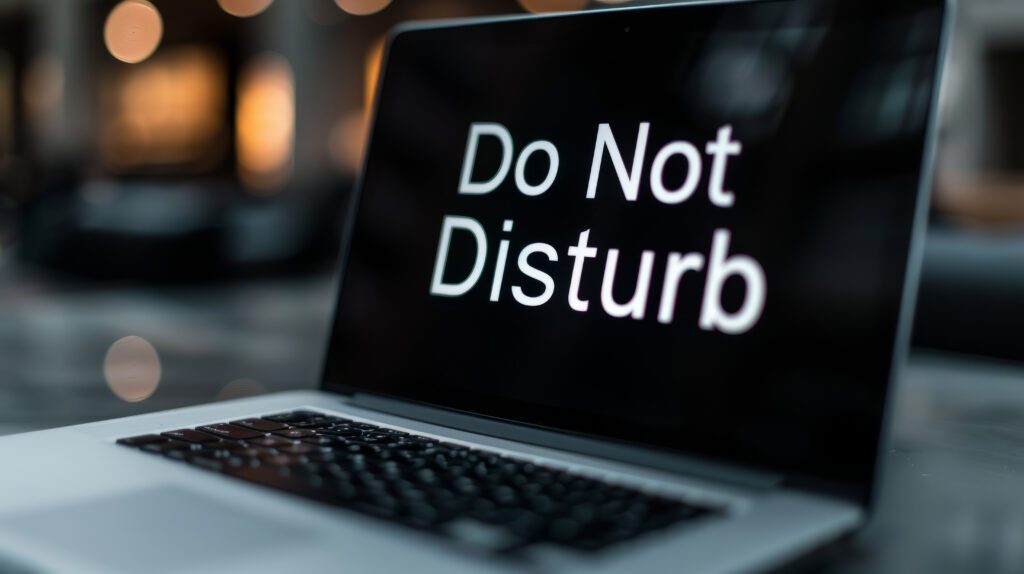
Now that Wi-Fi is everywhere, your laptop may decide to connect, sync, or notify you at the worst possible time. To keep your audience focused on your message, add these items to your pre-presentation checklist:
-
Turn on Do Not Disturb.
-
Windows: Settings > System > Notifications > Turn on Do Not Disturb
-
Mac: Control Center > Focus > Do Not Disturb
-
-
Disable your screen saver or extend the timeout.
-
Close apps that generate pop-ups: Outlook, Teams, Slack, Zoom, anti-virus alerts, OneDrive/Dropbox syncing, etc.
-
Pause backups or cloud syncing so your Wi-Fi isn’t hijacked mid-presentation.
-
Adjust power settings so your laptop doesn’t sleep during long discussions or breaks.
-
Hide your mouse pointer in PowerPoint:
-
Hide: Ctrl + H (as in Hide)
-
Show: Ctrl + A (think A for Arrow)
-
When presenting online, these tips are just as important—your audience sees whatever you share, distractions included.
Do you want more tips? Grab a handout of PowerPoint keyboard shortcuts plus more presentation tips.
Check Your Connections
Even though most meeting rooms use HDMI or wireless display, setups still vary. Before you begin:
-
Verify your power source.
The #1 presentation mishap? A laptop running on battery without anyone realizing it. -
Bring a USB-C to HDMI adapter.
Most modern laptops have USB-C only. Also, watch for loose or damaged HDMI cables, which are still common culprits for “Why isn’t my screen showing?” And if you’re on a Mac, keep a small pouch of your go-to adapters so you’re ready for any setup a venue might throw at you. - Test wireless display options early.
AirPlay, Miracast, and Teams Rooms work well, but not at the last minute.
Bonus Tip: Make friends with the A/V team. They are the true presentation heroes.
Anticipate Equipment Glitches
Prepare for the worst, and equipment problems will be much easier to handle:
-
Pack spare batteries and fully charge your remote and presentation devices.
-
Arrive early or, if possible, walk the room the day before.
-
Test all media—audio, video, animations, clicker range, and slide transitions.
-
Bring backup copies of your presentation.
-
On a flash drive
-
Saved to OneDrive/SharePoint
-
A printed copy or PDF (for handouts or emergencies)
-
Bonus Tip: Providing a QR code or a download link in advance is another great fallback.
Present Yourself Professionally
Your wardrobe shouldn’t distract from your message:
-
Remove badges, lanyards, and noisy accessories.
-
Avoid busy patterns and jangly jewelry that interfere with microphones.
-
Empty pockets of keys or coins.
-
Choose clothing that works well with both standing and seated setups (especially for hybrid and panel sessions).
Final Thoughts
Perfect presentations don’t exist, but preventable distractions absolutely do. With a few smart habits and a bit of preparation, you can stay focused on what matters most—delivering a clear, confident, memorable message.
Were these PowerPoint tips helpful? Discover more PowerPoint techniques and shortcuts TheSoftwarePro.com/PowerPoint.
© Dawn Bjork, MCT, MOSE, CSP®, The Software Pro®
Microsoft Certified Trainer, Productivity Speaker, Certified Speaking Professional
