Quick Overview:
Need to send someone directly to the right information in your Microsoft OneNote notebook? In this post, you’ll learn how to create links to specific sections, pages, and even individual paragraphs in OneNote. These simple shortcuts can save time, improve collaboration, and make large notebooks much easier to navigate.
 Have you ever shared a OneNote notebook and then had to explain where someone should look? Instead of making people scroll through pages of notes, you can create links that jump directly to a section, page, or even a single paragraph in Microsoft OneNote.
Maybe you want to share meeting minutes, project updates, research notes, or just one important paragraph. Instead of sharing an entire notebook and hoping someone finds the right content, OneNote lets you create links to specific sections, pages, and even individual paragraphs.
These links are especially helpful for collaboration, project management, meeting notes, and organizing large notebooks. To learn more about sharing parts of a OneNote notebook, continue reading or watch my video:
Share a Link to a OneNote Section
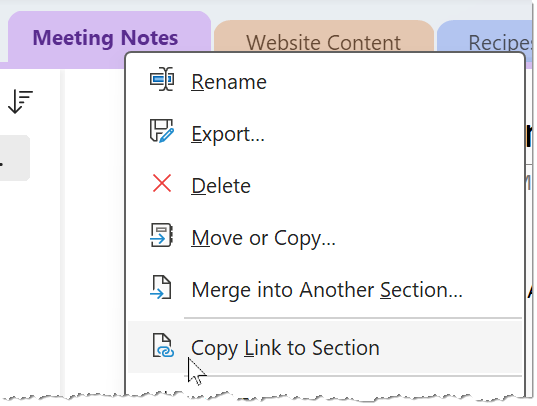 Sometimes you want to share a broader category of information, such as an entire project section or department notebook area.
To create a link to a section:
- Right-click the section tab.
- Select Copy Link to Section.
- Paste the link wherever needed.
You can paste the link into:
- Another OneNote page
- An Outlook email
- A Teams chat or channel
- A Word document
- An Excel or PowerPoint file
When someone clicks the link, OneNote opens automatically to that section. This is especially useful for:
- Project resources
- Team documentation
- Department reference materials
- Shared planning notes
Link to a Specific OneNote Page
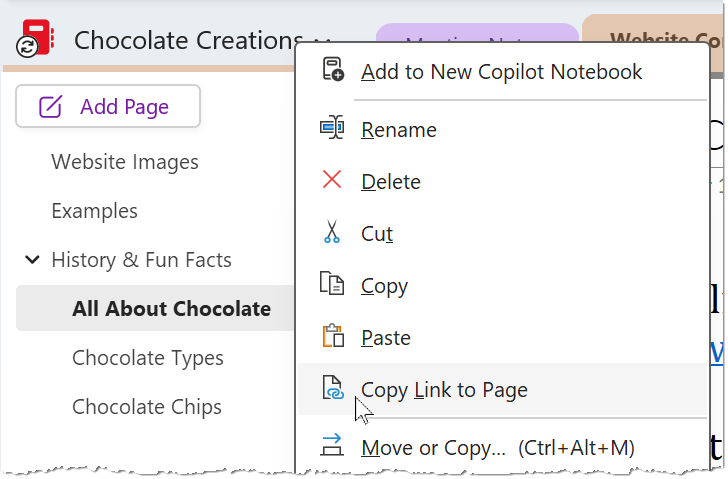 Need to send someone to the exact location for a meeting note or task list?
Instead of sending them to an entire section, you can link directly to a page.
To create a page link:
- Right-click the page.
- Select Copy Link to Page.
- Paste the link where you want to share it.
This works great for:
- Meeting notes
- Action item lists
- Project updates
- Training documentation
- Shared agendas
A page link helps people jump directly to the information they need without scrolling through multiple notes. To learn more about creating and sharing meeting notes, check out my article.
Link to a Specific Paragraph in OneNote
One of OneNote’s most useful hidden features is the ability to link to an individual paragraph. This is perfect when you need to reference:
- A single task
- One important note
- A deadline
- A key decision
- A specific instruction
To create a paragraph link:
- Right-click the paragraph.
- Choose Copy Link to Paragraph.
- Paste the link into your document, email, or message.
When someone clicks the link, OneNote jumps directly to that exact paragraph and highlights it. This can make long pages much easier to navigate.
Where You Can Use OneNote Links
OneNote notebook links work across many Microsoft 365 apps and tools.
You can paste them into:
- Microsoft Outlook emails
- Microsoft Teams chats and channels
- Microsoft Word documents
- Microsoft Excel workbooks
- Microsoft PowerPoint presentations
- Other OneNote notebooks and pages
This makes it easy to connect information across your Microsoft 365 environment.
Important Tip About OneNote Sharing Permissions
 When you share a section, page, or paragraph link, you are still sharing content from the full notebook.
Anyone using the link must already have permission to access the notebook. The link simply takes them right to a specific location within it.
If you need help sharing an entire notebook, be sure to read my separate article on sharing OneNote notebooks.
Desktop and Web Links Automatically Included
Another helpful feature is that OneNote automatically creates:
- A link for the desktop app
- A link for OneNote on the web
This gives recipients flexibility to open the notebook using the version they prefer.
Make Your OneNote Notebooks Easier to Navigate
Links inside OneNote can do much more than simply share notes. They can also help you organize information.
For example, you can create:
- Clickable dashboards
- Tables of contents
- Project navigation pages
- Quick-access reference lists
These shortcuts make large notebooks much easier to manage and navigate.
Many OneNote power users create a “home page” in their notebook with links to frequently used sections, project notes, meeting pages, and reference materials.
Final Thoughts
Sharing links to sections, pages, and paragraphs is one of the simplest ways to make your Microsoft OneNote notebooks more useful and collaborative. Instead of sending people hunting through notes, you can guide them directly to the exact information they need.
Want more practical OneNote tips? Visit TheSoftwarePro/OneNote for additional tutorials and time-saving tips.
© Dawn Bjork, MCT, MOSE, CSP®, The Software Pro®
Microsoft Certified Trainer, Productivity Speaker, Certified Speaking Professional