Quick Overview:
Learn how to display formulas in Excel to better understand, audit, and troubleshoot your calculations. This guide shows how to toggle between results and formulas using the Show Formulas feature or keyboard shortcut, helping you verify accuracy, identify errors, and ensure your worksheet logic is working correctly.
 One of the fundamental features of Microsoft Excel is that we can build formulas and functions and then see the results in our worksheet. But sometimes, it would be helpful to see what’s behind these results. And we don’t want to have to move through every single cell in a worksheet to review the calculations, especially when the worksheet might be complex with hundreds or thousands of rows. Showing formulas can be especially important when we receive data from a colleague, a vendor, or a client, and we want to be able to double-check or audit the logic to make sure that we’re getting the correct calculations for the results that we’re looking for in the worksheet.
To make sure you have accurate calculations or logic in place, use the Excel Show Formulas feature (see video).
Show Formulas Ribbon Option
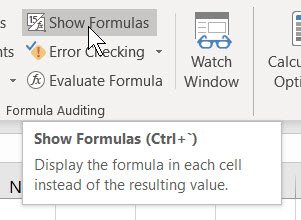
You’ll find Show Formulas under the Formulas tab in the Formula Auditing group. We can now turn this on or off by simply using Show Formulas.
Show Formulas Keyboard Shortcut
You’ll see there’s also a keyboard shortcut for Show Formulas, which is [Ctrl] + the grave accent (`). This is the key that is just to the left of the number 1 at the top of your keyboard. It’s on the same key as the tilde (~), which is the horizontal squiggle line. So, we could use the keyboard shortcut as well as a toggle to turn Show Formulas on or off.
The Show Formulas feature is also one way for us to make sure that we don’t have missing calculations, perhaps where someone put in the direct entry of a value, rather than having a calculation that will update as data changes. We can print out these results, the display of the actual formulas, and then toggle it back at any time. Show Formulas should be one of the tools in your auditing tool chest for Microsoft Excel.
Explore other helpful Microsoft Excel how-to articles.
© Dawn Bjork, MCT, MOSE, CSP®, The Software Pro®
Microsoft Certified Trainer, Productivity Speaker, Certified Speaking Professional