Quick Overview:
Microsoft Word includes several automatic formatting features designed to save time, but they can sometimes interfere with how you want a document to look. In this tutorial, you’ll learn how to customize AutoCorrect and AutoFormat As You Type settings to stop unwanted capitalization, hyperlinks, formatting changes, and automatic numbered or bulleted lists.
 Have you ever typed something in Microsoft Word only to have Word change it automatically? Maybe a numbered list appeared when you didn’t want one, text was reformatted, or a website or email address suddenly became a hyperlink. These automatic features are intended to make document creation easier, but they can also get in the way. Fortunately, you can customize many of these settings, so Word works the way you want it to.
In this article, you’ll discover a few simple settings that give you more control over automatic formatting in Microsoft Word. Or, watch the video to see these options in action.
Why Text Automatically Changes in Word
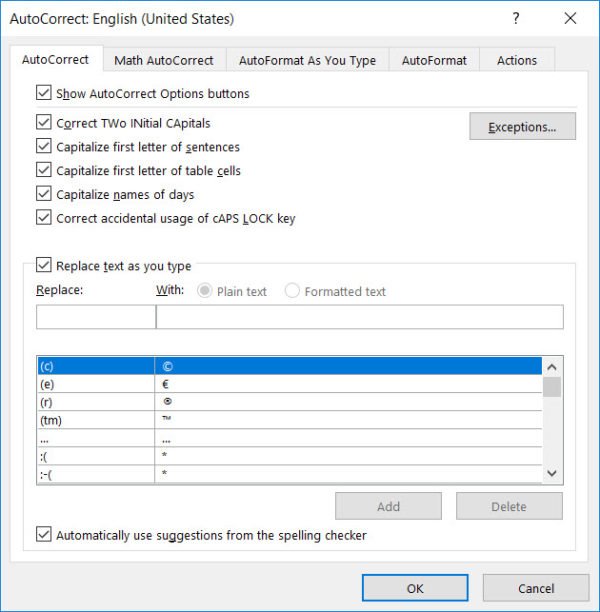
Does it seem like Word randomly changes the capitalization or spelling of text in a document? AutoCorrect is to blame. As the name indicates, AutoCorrect automatically corrects the spelling of commonly misspelled words but also makes other changes, including capitalizing the first letter in a sentence, table cell, or line of text. To review your choices and stop annoying automation in Word:
- Pick File > Options.
- Select AutoCorrect Options from the Proofing category.
- Choose the AutoCorrect tab (Word 365 screen shown) and uncheck any option that gets in the way of adding your text.
How to Stop Automatic Outlines & Numbered Lists You Don’t Want
Have you ever tried to create your own numbered list or outline with letters and then watched the numbering or formatting change once you press [Enter] for the next line? This is a huge annoyance if you want to build your own custom layout for an outline rather than working with the choices in Word.
Do you type your email address or website into a document and then watch as it suddenly changes to blue underlined text (a hyperlink)? Do you ever enter fractions or quotes that automatically re-format?
You are a victim of AutoFormat As You Type, a common Word ailment. Although some of these options can be helpful, turn them off if they get in the way of your work. To customize Word so that it works for you and not against you:
- Choose File > Options.
- Pick AutoCorrect Options from the Proofing category.
- Choose the AutoFormat As You Type tab (Word 365 screen shown) and uncheck any option that gets in the way of typing your text. Choices include smart quotes (different open and close quotes), fractions, hyperlinks to websites and email addresses, and automatic numbering.
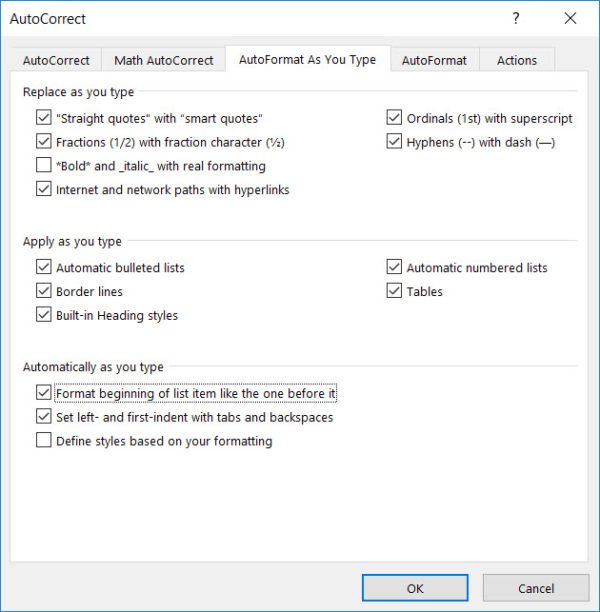
I recommend you uncheck all of the options in the last two sections, including Automatic numbered lists. You can still turn on the automatically numbered list any time you want. If you work with a lot of multi-level outlines and lists, you’ll want to keep the choice to Set left- and first-indent with tabs and backspaces found in the bottom section. Turn off choices in the 1st section as desired. Pick OK to finish.
Automatic numbered and bulleted lists and outlines can still be created from the Home tab (Paragraph group) in the Ribbon. Other formatting choices, such as hyperlinks or special symbols, can still be added to Word documents as needed.
Discover more ways to save time editing and formatting your Word documents at TheSoftwarePro.com/Word.
© Dawn Bjork, MCT, MOSE, CSP®, The Software Pro®
Microsoft Certified Trainer, Productivity Speaker, Certified Speaking Professional